Izuma Edge ready test suite
You can use the Izuma Edge ready test suite to test the full working functionality of the deployed LmP Yocto builds and gateway software. The tests identify gaps, errors, or functionality missing the required target. The test cases are divided into different levels according to the functional areas:
- Level 1: validates files, folders, partition mounting, partition size and some hardware requirements.
- Level 2: checks for the required programs and services on the gateway.
- Level 3: checks for the network interface and connectivity.
- Level 4: runs smoke test cases to validate the environment.
- Level 5: checks for all of the system services.
The tests complete with reports in CSV, JSON, XML and HTML.
Note: As the test suite requires the access key - you should not run it on production devices OR leave any configuration files from the test suite on production devices.
Abilities
With the Izuma Edge ready test suite, you can:
- Create test automation scripts.
- Choose test cases and levels.
- Run inside a physical gateway.
- Run a single test case or a group of test cases.
- Run the test suite on Linux machines with some configuration changes.
Other features include:
- Scalability.
- User- and business-friendly reporting.
- Configurable running order of test cases.
- Test reports in multiple formats (CSV, JSON, XML and HTML).
Platform
- Izuma Edge (LmP Build).
- Raspberry Pi 3B+
- Raspberry Pi 4B
- i.MX8
- Ubuntu (Linux)
Note: You must configure the suite to run it on Linux.
Requirements
Architecture
The diagram shows the architecture of the test suite. When the runner file starts, it requires a configuration file. The test suite executes all configured test cases.
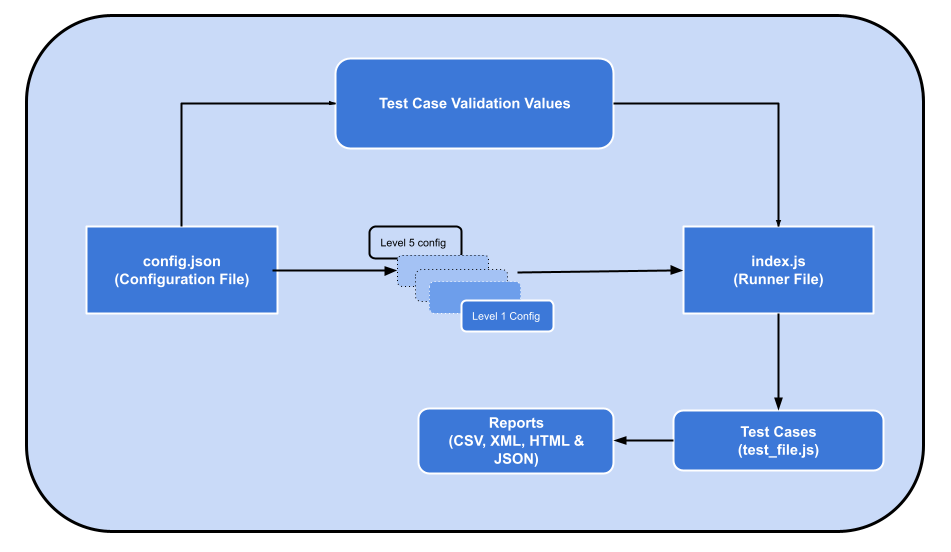
Test levels
All test cases are in the test-cases folder. The test cases are divided into test levels. In each level, some categories run sequentially as defined in the configuration file.
| Level | Function | Test case file or category |
|---|---|---|
| 1: file system and specification tests | Tests all folders, files, binaries, hardware requirements and mounting of the partitions in the LmP builds | - slashDirectory to check all files and folders required for LmP builds.- partition to test the mounting and size of different partitions.- Specification to test the hardware. |
| 2: program tests | Checks for the existence of the required programs on the gateway. The test cases are validated against the version number of each program. The validation information comes from the configuration file. | program_and_service |
| 3: internet connectivity tests | Verifies the gateway connectivity to the internet | network_and_connectivity |
| 4: smoke tests | Tests all smoke checks to make sure the test environment is ready to run functional test cases. If any of them fail, the program terminates, and the software is declared unstable. The test moves on to the next category only when all smoke tests pass. | - edge_smoke.- kaas_smoke. |
| 5: system and acceptance tests | Evaluates the system's compliance with the business requirements, running all processes one by one, to verify the system meets the delivery criteria. | - edge_services.- fluent_bit. |
Install & Run
-
Log in to the gateway using serial or
ssh, and clone the project:curl -LSs https://github.com/PelionIoT/pelion-edge-ready-test-suite/archive/refs/tags/v2.6.1.tar.gz -o perts.tar.gz tar -xvzf perts.tar.gz mv pelion-edge-ready-test-suite-2.6.1 pelion-edge-ready-test-suiteor alternatively, if your distribution has
gitincluded.git clone https://github.com/PelionIoT/pelion-edge-ready-test-suite -b v2.6.1 -
Use the provide installation script. Get your access key ready.
cd pelion-edge-ready-test-suite
sudo scripts/perts.sh -a <ak_... ACCESSKEY>
The script will download and install
node.js,npmandkubectl. It will also create akubectland test configuration file if it can guess the target host.If there is not readily suitable configuration file, create youw own following instructions inConfigure section and provide the naem of that configuration file to the script via
-c <config file>option. -
Review the test results. The tests results are visible in:
- the console/shell and
- HTML and JSON formatted test reports are also stored in the
suite_reports-folder.
Configure
The test suite runs according to a configuration file. For sample configuration files specific to Raspberry Pi3, Raspberry Pi4, i.MX8 and Dell, please see test-configs.
Note: Fill AccountID, InternalID and Access Key values.
Create a config.json using these fields and format:
{
    "title": "pelion-edge-ready-test-suite",
    "version":"2.6.1",
    "device_type": "rpi3",
    "tests_directory": "test-cases",
    "accountID": "<Izuma Cloud Account ID. Ex. -> 015c827e9fdf02420a010b1700000000>",
    "internal_id": "<Izuma Cloud Device ID. Ex. -> 0177b3ab0424000000000001001706ee>",
    "access_key": "<Izuma Cloud Access Key. Ex. -> ak_2MDE3N2FhN2ZhM.............>",
    "test_cases": [
        "test-cases/l1_file_system_and_specification_tests/slashDirectory.js",
        "test-cases/l1_file_system_and_specification_tests/specifications.js",
        "test-cases/l1_file_system_and_specification_tests/partition.js",
        "test-cases/l2_program_tests/program_and_services.js",
        "test-cases/l3_internet_and_connectivity_tests/network_and_connectivity.js",
        "test-cases/l4_smoke_tests/edge_smoke.js",
        "test-cases/l4_smoke_tests/kaas_smoke.js",
        "test-cases/l5_system_and_acceptance_tests/system_and_acceptance_tests.js"
        "test-cases/l5_system_and_acceptance_tests/kaas.js"
    ],
    "mocha_timeout": 60000,
	"log_level": 5,
	"throttle_rate": 500,
	"create_virtual_devices": false,
    "generate_detailed_report": true,
    "internal_server_port": {
        "edge_core_port": 9101,
        "enterprise_server_port": 8080
    },
    "specifications": {
        "minimum_cpu_core": 1,
        "min_cpu_freq": 200000,
        "max_cpu_freq": 4200000,
        "device_mem": {
            "MemTotal": 900000,
            "MemFree": 30000,
            "MemAvailable": 400000
        },
        "entropy":200,
        "SOC_die_temprature": 80,
        "ledConfig": "<Run command - 'cat /userdata/edge_gw_config/identity.json'; Fetch key value -> ['radioConfig']; Ex -> 01",
        "radioConfig": "<Run command - 'cat /userdata/edge_gw_config/identity.json'; Fetch key value -> ['radioConfig']; Ex -> 00",
        "hardwareVersion": "<Run command - 'cat /userdata/edge_gw_config/identity.json'; Fetch key value -> ['hardwareVersion']; Ex -> rpi3bplus",
        "apiAddress":"<Run command - 'cat /userdata/edge_gw_config/identity.json'; Fetch key value -> ['cloudAddress']; Ex -> https://api.us-east-1.mbedcloud.com>",
        "gatewayServicesAddress":"<Run command - 'cat /userdata/edge_gw_config/identity.json'; Fetch key value -> ['gatewayServicesAddress']; Ex -> https://gateways.us-east-1.mbedcloud.com",
        "kaasServicesAddress": "<Run command - 'cat /userdata/edge_gw_config/identity.json'; Fetch key value -> ['kaasServicesAddress']; Ex -> https://edge-k8s.us-east-1.mbedcloud.com"
    },
    "interface": {
        "wired": "default",
        "wireless": "wlan0"
    },
    "connectivity_dns": [
        "google.com",
        "<Run command - 'cat /userdata/edge_gw_config/identity.json'; Fetch key value -> ['cloudAddress']; Ex -> api.us-east-1.mbedcloud.com",
        "<Run command - 'cat /userdata/edge_gw_config/identity.json'; Fetch key value -> ['gatewayServicesAddress']; Ex -> gateways.us-east-1.mbedcloud.com",
        "<Run command - 'cat /userdata/edge_gw_config/identity.json'; Fetch key value -> ['edgek8sServicesAddress']; Ex -> edge-k8s.us-east-1.mbedcloud.com",
        "<Run command - 'curl localhost:9101/status'; Fetch key value -> ['lwm2m-server-uri']; Ex -> lwm2m.us-east-1.mbedcloud.com"
    ],
    "config_path": {
        "identityJSON": "/userdata/edge_gw_config/identity.json",
        "mcc_config_working": "</userdata/mbed/mcc_config/WORKING>"; In case of PARSEC - "</userdata/mbed/mcc_config/pst>",
        "mcc_config_backup": "</userdata/mbed/mcc_config/BACKUP>"; In case of PARSEC - "</userdata/mbed/mcc_config/its>",
        "device_db_yaml_config": "/wigwag/etc/devicejs/devicedb.yaml",
        "td_agent_bit_conf": "/etc/td-agent-bit/td-agent-bit.conf"
    },
    "binary_path": {
        "edge_core": "/wigwag/mbed/edge-core"
    },
    "program_version": {
        "maestro": "0.1.0",
        "docker": "19.03.13-ce",
        "openssh": "OpenSSH_8.3p1",
        "openssl": "1.1.1",
        "node": "12.19.0",
        "edge_core": "0.15.0",
        "kernel": "5.4.0",
        "td-agent-bit": "1.3.5"
    },
    "partitions": {
        "/dev/mmcblk1p7": {
            "name": "Sysroot",
            "size": "960M"
        },
        "/dev/mmcblk1p3": {
            "name": "Config",
            "size": "8.9M"
        },
        "/dev/mmcblk1p5": {
            "name": "Flags",
            "size": "8.9M"
        },
        "/dev/mmcblk1p1": {
            "name": "Boot",
            "size": "26M"
        },
        "/dev/mmcblk1p6": {
            "name": "Cache",
            "size": "8.9M"
        },
        "devtmpfs": {
            "name": "Dev",
            "size": "457M"
        }
    },
    "fileSystem": [
        "bin",
        "boot",
        "dev",
        "etc",
        "home",
        "lib",
        "media",
        "mnt",
        "opt",
        "ostree",
        "proc",
        "run",
        "sbin",
        "srv",
        "sys",
        "sysroot",
        "tmp",
        "userdata",
        "usr",
        "var",
        "wigwag"
    ],
    "drivers_path": "/lib/modules/<device_driver_version>/kernel/drivers/",
    "drivers": [
        "bcma",
        "block",
        "bluetooth",
        "char",
        "crypto",
        "hid",
        "i2c",
        "input",
        "leds",
        "md",
        "media",
        "misc",
        "net",
        "rpmsg",
        "spi",
        "ssb",
        "staging",
        "usb",
        "watchdog"
  ],
  "services": [
        "edge-core",
        "kubelet",
        "maestro",
        "edge-proxy",
        "docker",
        "pe-terminal",
        "td-agent-bit"
    ]
}
The configuration values may vary across gateways and operating systems. Please update accordingly.
Some of the essentials you can modify are:
-
mocha_timeout: the extended timeout in milliseconds for a Mocha test case. The default timeout for a Mocha test case is 2000ms. You can increase it by changingmocha_timeoutbased on your response time for the test case. -
log_level: numeric value from 1 to 5:- 1 shows only error logs.
- 2 shows error and warning logs.
- 3 shows an error, warning and information logs.
- 4 shows an error, warning, information and debug logs.
- 5 shows an error, warning, information, debug and trace logs.
Troubleshooting
gyp ERR! stack ImportError:
If you see this Python issue in npm install:
gyp ERR! stack ImportError: No module named site
Run this command:
unset PYTHONHOME
unset PYTHONPATH
node - command not found
The PATH-setting command is not persistent. If you log-out, start a new ssh session or reboot the device the PATH-variable will be returned back to normal. Re-run the PATH-update command.
KaaS tests fail
Please ensure your account has KaaS features enabled. By default accounts do not have this feature enabled, it needs to be enabled separately.
Moderate vulnerability cases reported by npm
Node Package Manager (npm) does report some moderate vulnerability cases for the Edge Ready Test Suite. These should not be of concern, as you should only have the test suite in development devices - briefly.
Note: Production devices must not have this test suite or any configuration files related to this suite in them.